
How to set break reminders without interrupting full-screen work
Set break reminders for writing, reading, and full-screen presentations; distinguish inactivity pauses from deferral and check ordinary and anti-snooze behavior.
Choose a work interval and break duration, then enable Delay in full screen. Screen Eye Care can hold a due reminder during a full-screen presentation, video, or game and show it after full screen ends. Whether time stops accumulating while you are away is controlled separately by Pause while inactive.
Start with a manageable work and break cycle
- Select Break reminders in the sidebar and turn on Enable break reminders.
- Choose a Work interval: 15, 20, 30, 45, 60, or 90 minutes. For example, start at 30 minutes and see how it fits your tasks.
- Choose a Break duration: 1, 3, 5, 10, or 15 minutes. A 30-minute work interval followed by a one-minute break is a configuration example, not medical advice or a universal recommendation.
- Set a Snooze duration of 5, 10, 15, or 30 minutes. Leave Anti-snooze breaks off while getting familiar with ordinary reminders.
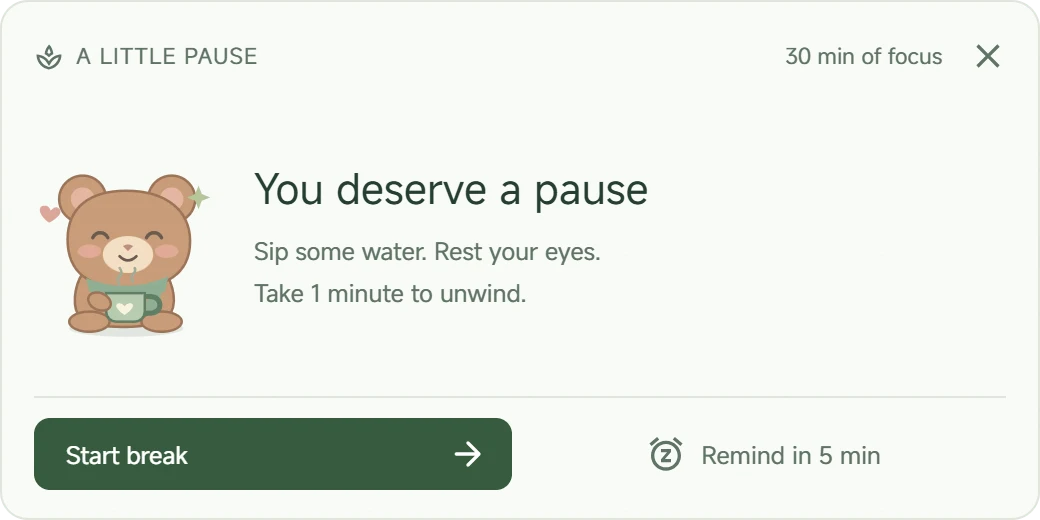
- Select Preview under Preview break reminder to test starting or snoozing from the reminder. This enters the real reminder flow, including the current anti-snooze restrictions when enabled, so test when you can take a break.
- To check the full-screen countdown directly, select Take a break. It starts a break immediately. Neither action replaces testing a complete work interval.
Watch Next break and the cycle progress after enabling the timer. Closing the main window normally leaves the app running in the Windows tray or macOS menu bar. Quitting the app from its menu ends the timer service too.
Closing an ordinary reminder snoozes it for the configured duration. Leaving it unanswered for 15 seconds also snoozes it automatically, rather than starting a full-screen break. Anti-snooze mode handles this timeout differently.
Understand inactivity pauses and full-screen deferral
| Setting | When it applies | Expected behavior |
|---|---|---|
| Pause while inactive | No keyboard or mouse input for the configured threshold | Work time freezes and later resumes from the remaining time |
| Delay in full screen | A break is due during a detected full-screen activity | The due reminder waits until full screen ends |
| Anti-snooze breaks | A due break enters the protected reminder flow | One snooze is available, followed by an enforced full-screen break |
Watching a long video without touching the keyboard or mouse may trigger an inactivity pause. If you want that viewing time included in your work interval, turn inactivity pausing off before the next cycle or select a longer threshold. Available thresholds are 1, 3, 5, 10, and 15 minutes.
System locking differs from inactivity pausing: unlocking or resuming from sleep starts a fresh work interval. Reminders that would have become due while locked or asleep are not replayed.
Full-screen detection depends on window and system state. Borderless windows and unusual players may behave differently. Test with the presentation software, player, or game you actually use.
Choose settings for writing, reading, or presentations
| Activity | Settings to consider | What to check |
|---|---|---|
| Writing or coding, with time away excluded | Enable Pause while inactive and start with ordinary reminders | The timer freezes after the threshold and resumes on return |
| Reading or watching without keyboard or mouse input | Turn inactivity pausing off if that time should count | Next break keeps counting down while you watch or read |
| Full-screen presentations, videos, or games | Enable Delay in full screen and test ordinary reminders first | A due reminder waits until you leave full screen |
| Frequently ignoring reminders when you can take a complete break | Try anti-snooze after learning the ordinary flow | You can accept one snooze and a break without an early end |
These settings use input and window state. They do not know whether you have rested, are in a meeting, or are doing urgent work. A meeting in an ordinary window does not trigger full-screen deferral merely because the meeting is running.
Start with a work interval you can follow, then adjust based on interruptions. Anti-snooze changes the response flow after a break is due; it does not decide a better break time for you.
Check a setup intended for presentations or games
Enable Delay in full screen and first test with ordinary reminders. Keep Screen Eye Care running, enter full screen in your usual software, allow a work interval to become due, and then leave full screen. The expected result is no due reminder during full screen, followed by a reminder after you leave it.
If you also want viewing time to count, make sure inactivity pausing has not frozen the work timer first. These two options solve different problems. Enabling full-screen deferral alone does not establish that time will keep accumulating.
Deferral is based on full-screen state. It does not inspect meeting content or determine whether a task is important.
Confirm the app stays running and the work timer advances before waiting through a complete interval. Preview checks reminder actions, but it cannot establish whether full-screen deferral, inactivity pausing, or the scheduled due time works as expected.
What happens in anti-snooze mode?
With Anti-snooze breaks enabled, a due reminder starts a 15-second response countdown. You may snooze once for the configured duration. Ignoring the countdown, or reaching the due time again after that snooze, leads into an enforced full-screen break. The app does not offer an early end before the break countdown finishes.
The response countdown pauses if a temporary lock covers the reminder or the reminder cannot be shown. That time is not treated as an ignored reminder; the countdown continues when the reminder is visible again.
Once the current commitment is active, related timing settings and quitting the app are restricted until the break completes. Start with ordinary reminders if your work requires immediate availability, and try the stricter mode during a quiet period.
On macOS, the break view restricts app switching, hiding, and closing. System locking, Force Quit, and some system gestures remain available. The feature is a personal reminder mechanism, not a system security lock.
Diagnose a timer that stops or a reminder that does not appear
- The progress stops: check Pause while inactive and its threshold. Resume keyboard or mouse input and watch the remaining time.
- Nothing appears during full screen: check full-screen deferral. Leave full screen and look for the reminder before treating the timer as broken.
- Reminders stop after closing the window: confirm that the tray or menu bar icon is still present. Closing a window and quitting the app have different effects.
- Timing settings cannot be changed: check whether the current anti-snooze commitment is active. Finish that break before changing the protected settings.
- The app does not run after sign-in: check Launch at startup in General settings. For a portable installation moved to another folder, turn the option off and on to refresh its startup path.
A useful issue report includes the work interval, inactivity threshold, full-screen state, anti-snooze setting, and the timer state when the problem occurred. “No popup” alone leaves several different behaviors unresolved.
If your displays still look uneven when returning from a break, continue with independent monitor brightness and DDC/CI troubleshooting.
For fewer distractions around a reading window, see Focus mode. For an evening screen that is too bright, use software dimming. Installation links are in the Windows and macOS download section.